Alexa configuration
The Alexa integration allows users to control the KS Assistant entities via the KS Assistant Smart Home skill for Amazon Alexa. You can then say things like "Alexa, turn on the kitchen light" to control your local KS Assistant.
To use this integration, you need to have an Amazon Alexa enabled device like the Amazon Echo.
Note: The procedure below applies to KS Assistant version 2023.5 and later. If you are running an older version, Amazon Alexa is located under KS Assistant Cloud.
To control KS Assistant entities from Alexa, follow these steps:
-
Under Settings > Voice assistant, enable Alexa.

-
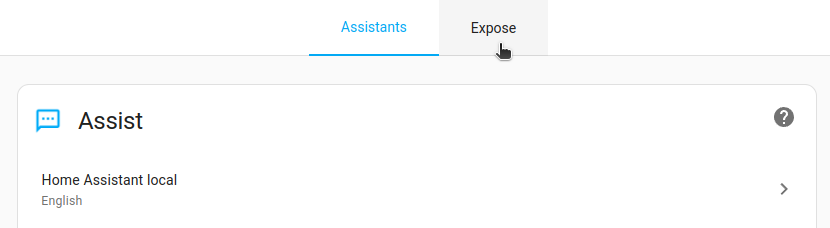
On the Expose tab, expose at least one entity to Alexa.
- Open the Expose tab.
- Select all entities you want to be able to control via Alexa.
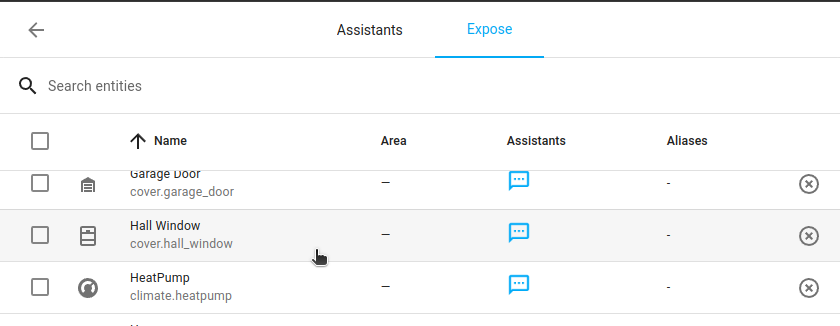
- Select Expose enitites.
Result: The Alexa icon is now visible in the Assistants column.

- Open the Expose tab.
-
Activate the KS Assistant Smart Home skill via the Alexa app.
-
From the Alexa App on your phone, go to Skills & Games.
-
Find KS Assistant and add it.
The KS Assistant Smart Home skill is available in multiple marketplaces
Result: You will be prompted to link to your Kingsignal account.
-
-
Once activated, tell Alexa to discover new devices: Alexa, discover new devices.
Available domains
Currently, the following domains are available to be used with Alexa:
- Alarm Control Panel (alarm control panels must not require an arm code)
- Alert
- Automation (enables/disables)
- Binary sensor
- Camera
- Climate
- Cover
- Fan (supports on/off and set speed)
- Group
- Input boolean
- Light
- Lock (lock and unlock, but unlock is untested as Amazon has disabled unlock for now)
- Media player (play, pause, stop, set volume, adjust volume, next track, and previous track)
- Scene
- Script (enables/disables)
- Sensor
- Switch
Manual configuration
You can use configuration.yaml to configure the entities that are being shown to Alexa and how they are exposed.
If you use any filters, as shown in the example below, the entities can no longer be exposed via User Interface. They are still listed under Settings > Voice assistant > Expose, but are shown grayed out.
# Example configuration.yaml entry configuring Alexa

cloud:
  alexa:
    filter:
      include_entities:
        - alarm_control_panel.house
        - light.kitchen
        - light.kitchen_left
      include_domains:
        - switch
        - alarm_control_panel
      exclude_entities:
        - switch.outside
    entity_config:
      light.kitchen:
        name: Custom Name for Alexa
        description: The light in the kitchen
      switch.stairs:
        display_categories: LIGHT
Configuration variables
alexa:
  (map) (Optional) Configuration options for the Amazon Alexa integration.

  filter:
    (map) (Optional) description: Filters for entities to include/exclude from Alexa.
    include_entities:
      (list) (Optional) description: Entity IDs to include.
    include_domains:
      (list) (Optional) Domains to include.
    exclude_entities:
      (list) (Optional) Entity IDs to exclude.
    exclude_domains:
      (list) (Optional) Domains to exclude.

  entity_config:
    (map) (Optional) Entity specific configuration for Alexa.
    ENTITY_ID:
      (map) (Optional) Entity to configure.
      name:
        (string) (Optional) Name of entity to show in Alexa.
      description:
        (string) (Optional) Description of entity to show in Alexa.
      display_categories:
        (string) (Optional) The display category to use in Alexa. Available categories